Set Up your Brand
Last updated: November 5, 2026
Your Brand is the company or product Rankscale looks for in AI answers. A clean setup makes every number after it more reliable. This guide covers the settings that matter most in your first hour.
Start Here
New to Rankscale? The Brand Setup Wizard walks you through your website, brand details, goals, competitors and your first Search Terms. 📄 Setting up a Brand with the Brand Setup Wizard
Check your Brand Settings
After the wizard, open Configuration > Brand Settings and review the General tab.
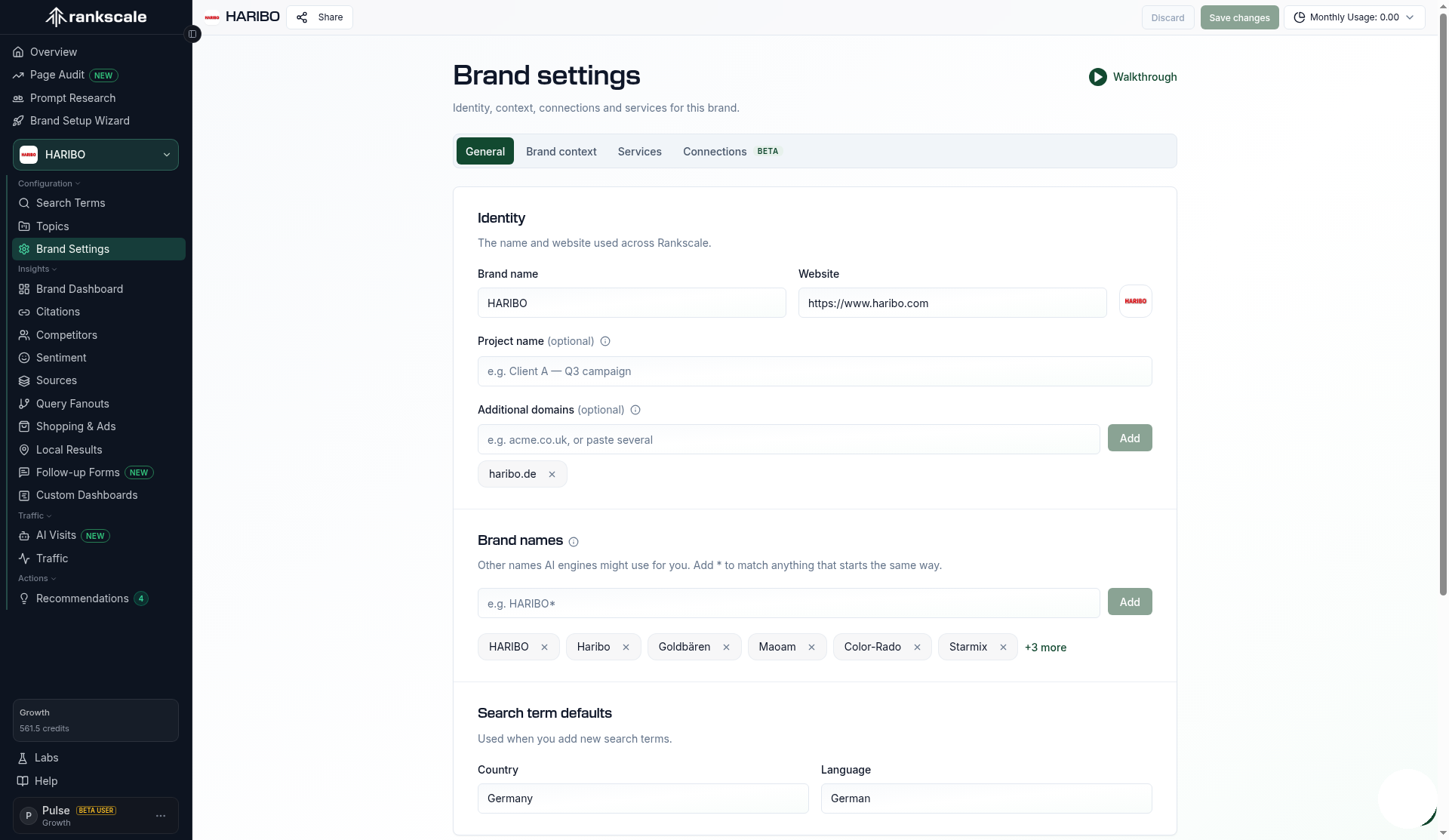
Website: your main website. Rankscale uses it to show your favicon and to match Search Console and traffic data to this Brand.
Additional domains: other websites your Brand owns. Mentions on those sites count toward your visibility instead of being treated as competitors. Subdomains are included automatically. This field is shown where available.
Search term defaults: the Country and Language that new Search Terms start with. You can still change them per Search Term.
Review your Brand Context
The Brand context tab in Brand Settings holds what Rankscale knows about your brand: What you sell, Industry, Who it's for, Where you operate, Goals, How you're different and Competitors. Rankscale fills it in from your website.
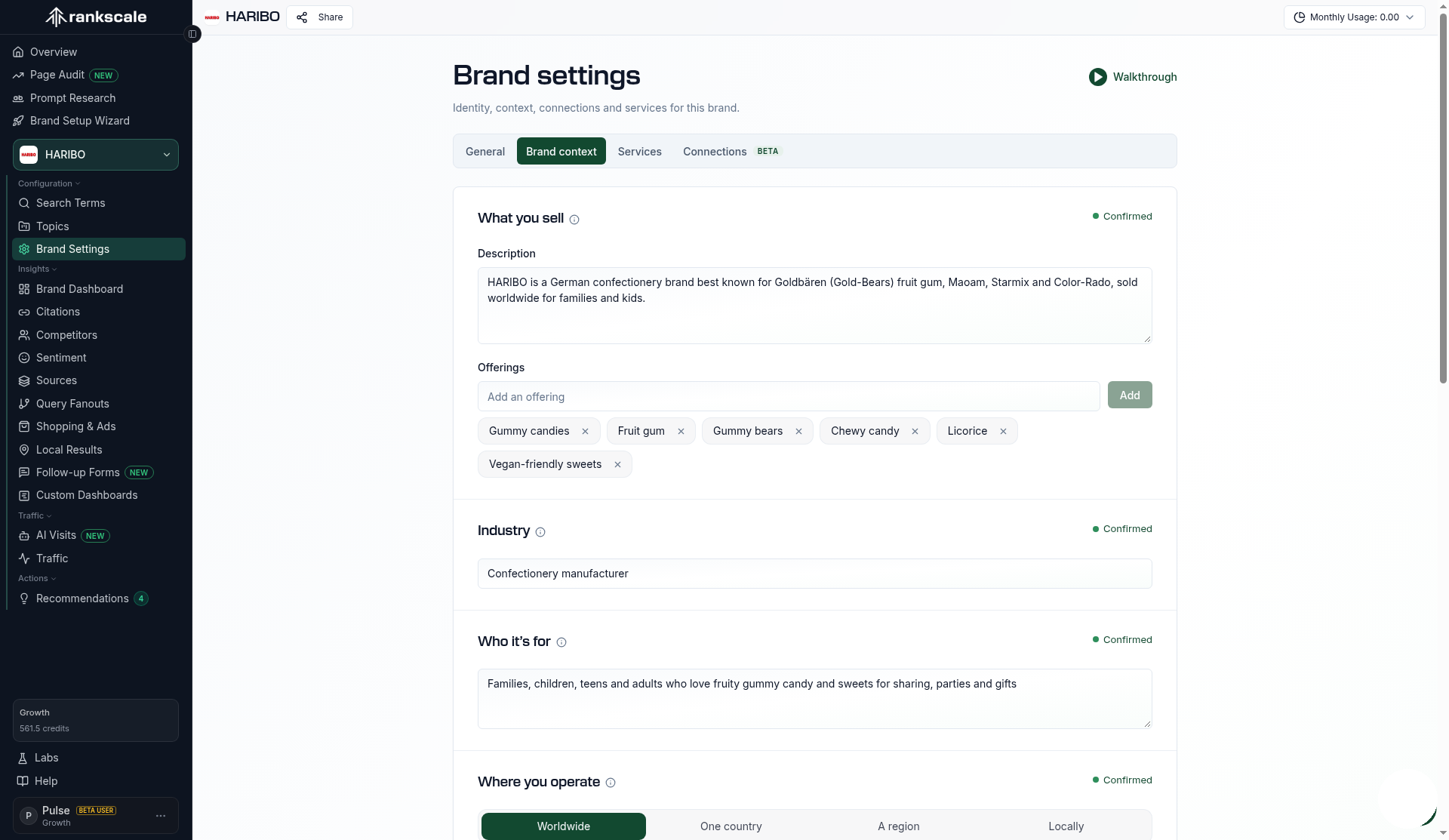
Each section shows where its content came from, for example From your website or AI suggested. Sections without content show Not set.
Check each section, edit what is wrong and click Confirm. The section then shows Confirmed.
Search term suggestions, including Find Terms on the Search Terms page, use your Brand Context, so a few minutes here make your suggestions more relevant.
Add the Names AI Engines Use for You
AI answers do not always use your official name. Add short forms, old names and common spellings in the Brand names card, using Add a brand name. Your primary brand name is already in the list.
To catch names that start the same way, add a wildcard at the end, for example Brand*. It matches "BrandX" but not "XBrand".
Add your products under Products in the Advanced section of the same tab, so mentions of them are found too. Keep them specific. 📄 Managing Brand and Product Names
Changing Names Later
New or removed names apply to new runs. Past results stay as they are until you recalculate them. 📄 Fixing Incorrect Brand Matches
Tip: Avoid wildcards on short or common words. They can match words that have nothing to do with your Brand.