Managing Brand and Product Names
Last updated: October 13, 2026
This article covers how to review and update your brand names, brand name variations, and product names, and how to use the Services tab to detect and fix false positives and false negatives in your brand data.
Open your Brand Settings
Open your brand.
In the sidebar, under Configuration, click Brand Settings. You need write access to the brand to see it.
The General tab shows your brand names, brand name variations (listed as Additional Brand Names), and product names.
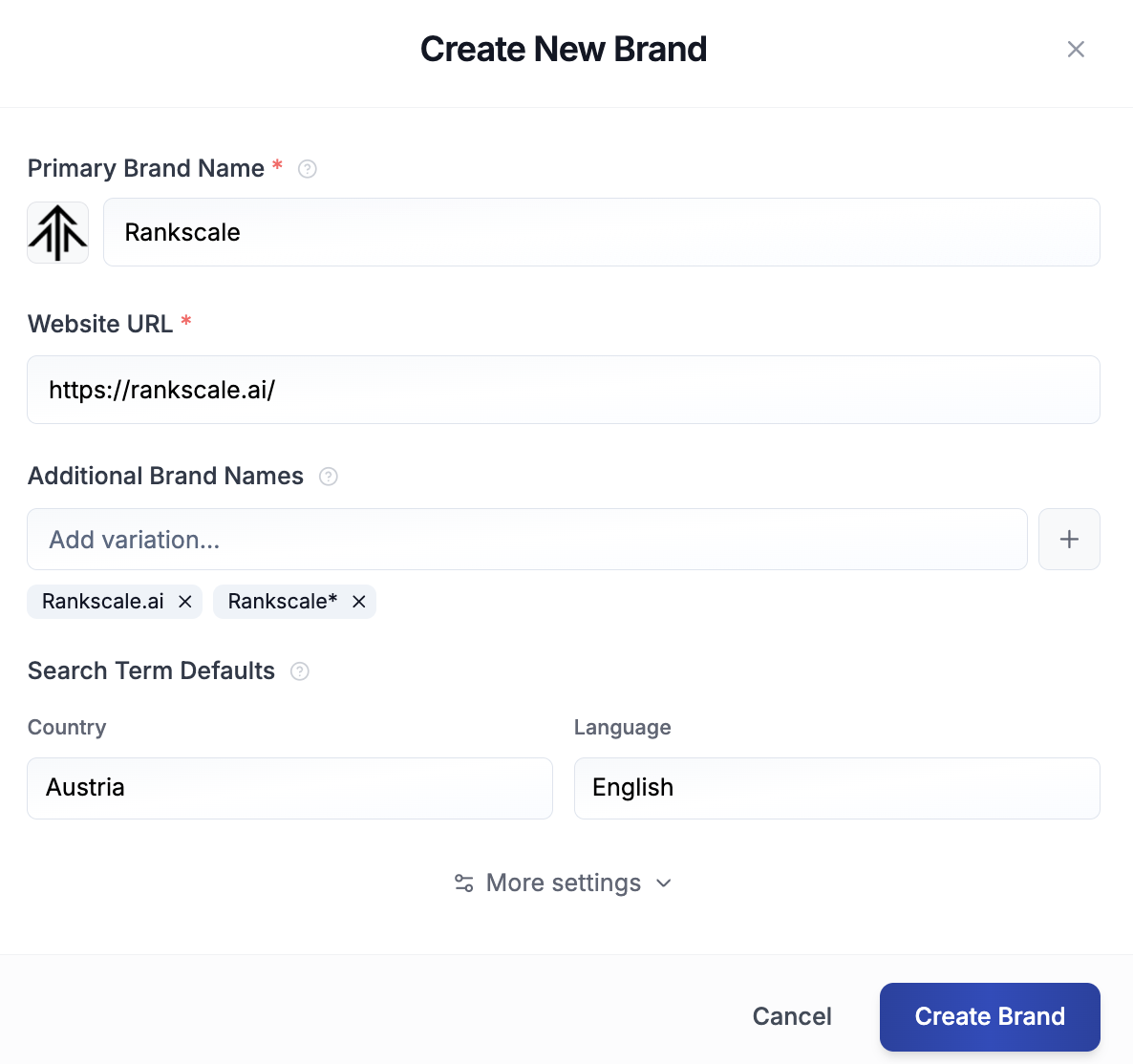
Brand Names and Variations
Your brand name is the primary name Rankscale uses to detect mentions and citations across AI engines. Brand name variations let you add alternative spellings, abbreviations, or related names that should also count as your brand.
Variations support wildcards. For example, adding "breeze*" would match "Breeze", "BreezeAI", "BreezeCRM", and any other term starting with "breeze".
Tip: If your data looks off, check your brand name variations first. Removing overly broad or generic entries is often the quickest fix.
Product Names
Product names help Rankscale identify mentions of your specific products in AI engine responses, separate from your brand name itself. You can add, edit, or remove product names on the same General tab.
Like brand name variations, product names that are too generic can trigger false matches. Keep them specific to avoid picking up unrelated mentions.
Fixing Incorrect Brand Matches
If you have changed your brand names or added new variations after data was already collected, you may need to re-scan and correct your past mentions and citations. See 📄 Fixing Incorrect Brand Matches to detect false positives and negatives and recalculate your metrics.