Understanding your Brand Dashboard
Last updated: October 13, 2026
Your Brand Dashboard is your central hub for monitoring how your brand appears across AI-powered search engines. It gives you a real-time view of your brand's visibility, sentiment, and competitive positioning - all in one place.
This guide walks you through the key sections of the dashboard so you can get the most out of your data.
Performance Summary Cards
At the top of the dashboard, you'll see a set of performance summary cards that update based on your filters. These give you a quick snapshot of your brand's health across AI results.
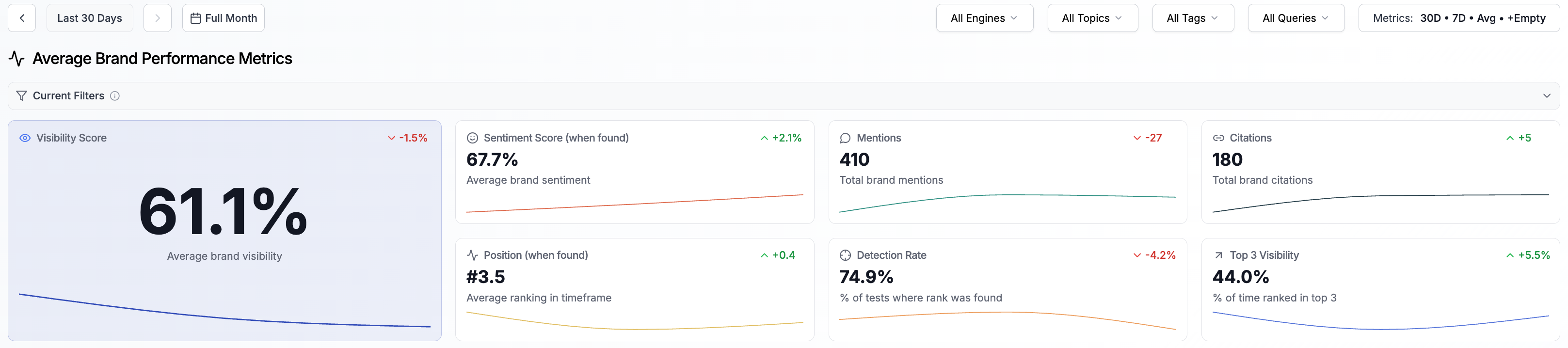
Visibility Score - Your overall brand visibility across AI results. This is the headline metric that shows how often and how prominently your brand appears overall.
Mentions - The total number of times your brand was found in AI results.
Sources - How often pages from your own website domains appear in the source list next to AI answers. The AI does not need to name your brand for a page to count.
Citations - The number of times your brand was linked or referenced as a source in AI responses.
Sentiment Score - How positively or negatively your brand is described in AI results. This reflects the tone and language AI engines use when referencing your brand.
Position - Your average rank when your brand is mentioned in a result.
Detection Rate - The percentage of tracked runs where your brand appeared. This shows how consistently your brand is being picked up across different search terms.
Top 3 Visibility - The percentage of results where your brand ranked in the top 3 positions.
Reading the Score Cards
The big number on each card shows one reading of your data. The small line under it tells you which one.
Cards | Big number | Also shown |
|---|---|---|
Visibility Score, Sentiment Score, Position, Detection Rate, Top 3 Visibility | Latest: the most recent value in the selected period | The period average, marked with Ø: the simple average across the whole selected period |
Mentions, Sources, Citations | Total: the sum for the selected period | A short note on what is counted |
Use Latest to see where you stand right now. Use the period average to report on a whole week or month, because a single day can move a lot. When you compare two reports, compare Latest with Latest, or period average with period average.
Cards can also show a badge that compares your brand with your tracked competitors in the selected period:
Badge | What it means |
|---|---|
Leading | Your brand has the best value of all compared competitors, with no tie for first place |
Strong | At least 15% better than the median of your tracked competitors |
Average | Within 15% of that median, above or below |
Attention | At least 15% worse than that median |
Hover over a badge to see the median, how many competitors it compares with, and why the badge was given.
No badge does not mean average
A card shows no badge when there is not enough comparable data. This happens when fewer than three tracked competitors have enough data in the selected period, or when your brand and your competitors all have zero. Try a longer date range, or track more competitors.
How badges work for Sentiment Score, Position and Sources
Sentiment Score compares in percentage points: 15 points above or below the median, not 15%.
Position is better when it is lower. A lower position than your competitors counts as better.
Sources does not compare with your tracked competitors. It compares your share of the sources with the other top domains in your sources.
Filters
The filter bar at the top of the dashboard lets you narrow down your data to focus on what matters most. You can combine multiple filters to create specific views.
Time Range
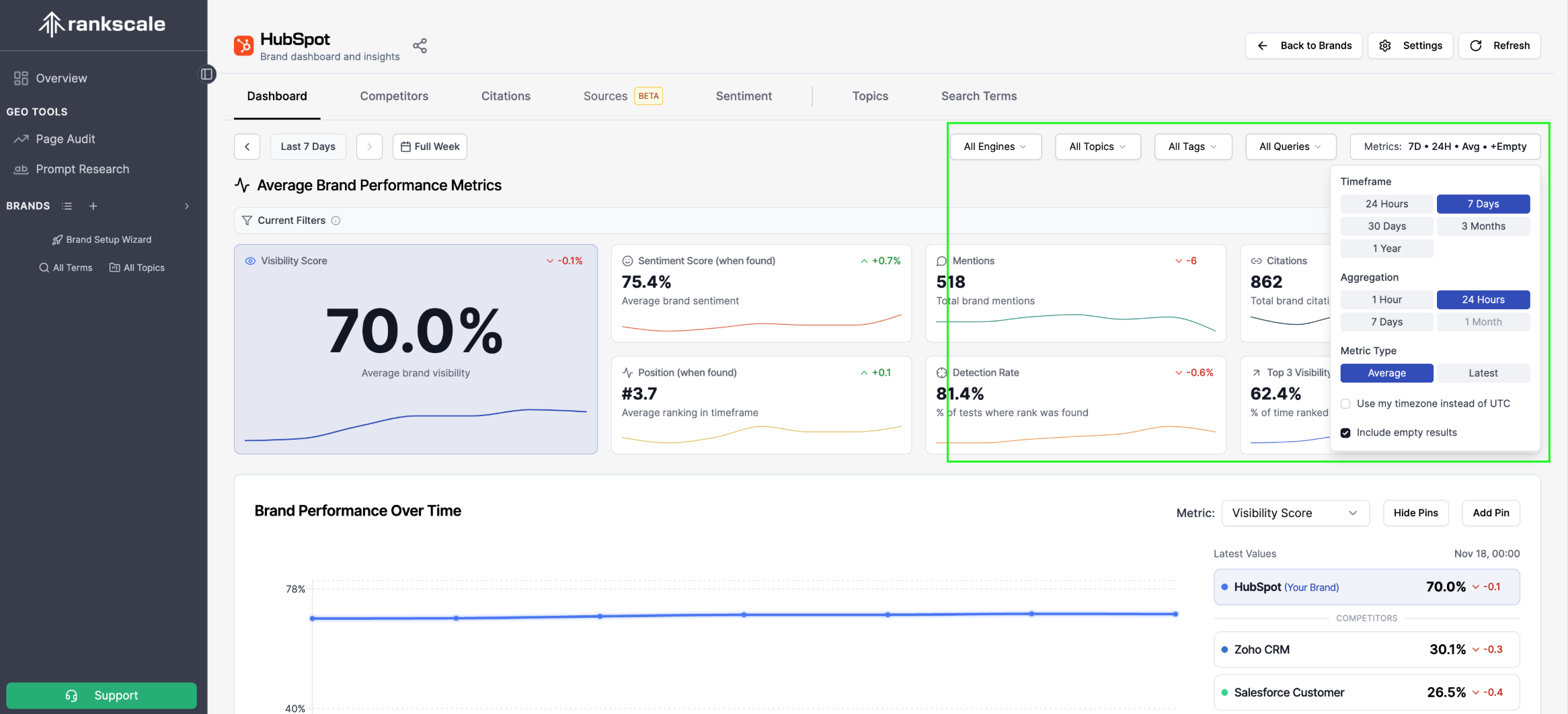
Click the date picker in the filter bar to select your reporting period. Choose a preset such as This Week, This Month, Last 7 days or Last 30 days, or pick your own dates in the calendar. Then click Apply.
Use the arrows on either side of the date picker to move to the previous or next period.
Dimension Filters
Use the dropdown filters to slice your data by:
All Engines - Filter by specific AI search engines (e.g., ChatGPT, Perplexity, Gemini).
All Topics - Focus on specific topic categories you created.
All Tags - Filter by custom tags you've applied to your queries.
All Prompts - Drill into specific search terms.
Metrics Configuration
Under the calendar in the date picker, you can set how your summary cards calculate and display data. Your changes take effect when you click Apply:
Aggregation - Set how data points are grouped: Hourly, Daily, Weekly, Monthly.
Smoothing - Toggle between Trailing average (smoothed trends) and Raw latest (most recent data point).
Timezone - Choose UTC or Local to show times in UTC or in your own timezone.
Brand Performance Over Time
Below the summary cards, you'll find the Brand Performance Over Time chart. This tracks your selected metric over your chosen time range, with your brand highlighted alongside your competitors.
Use the Metric dropdown above the chart to switch between metrics (Visibility Score, Mentions, Sentiment, etc.). The right-hand panel lists the value for your brand and each competitor. Switch it between Latest and the period average (Ø) to see either the most recent value or the whole period.
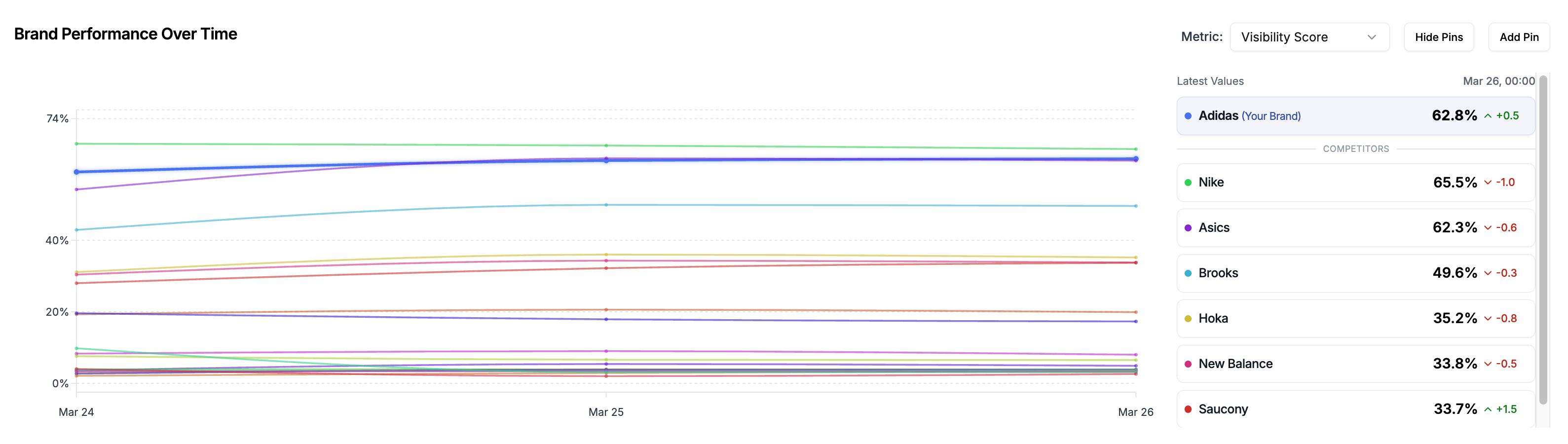
Tip: You can add pins to data points to map changes or reporting cycles