How to Create a New Brand
Last updated: October 6, 2026
This guide walks you through creating a new brand in your Rankscale workspace, which is the first step to getting insights about your AI-Visibility.
Step-by-step instructions
In the sidebar, find the Brands section.
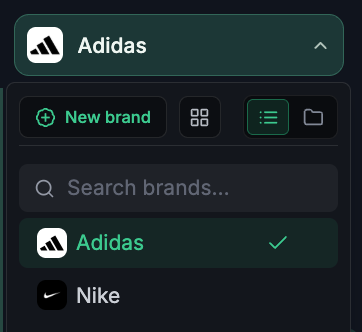
Click the dropdown next to Brands and hit New Brand.
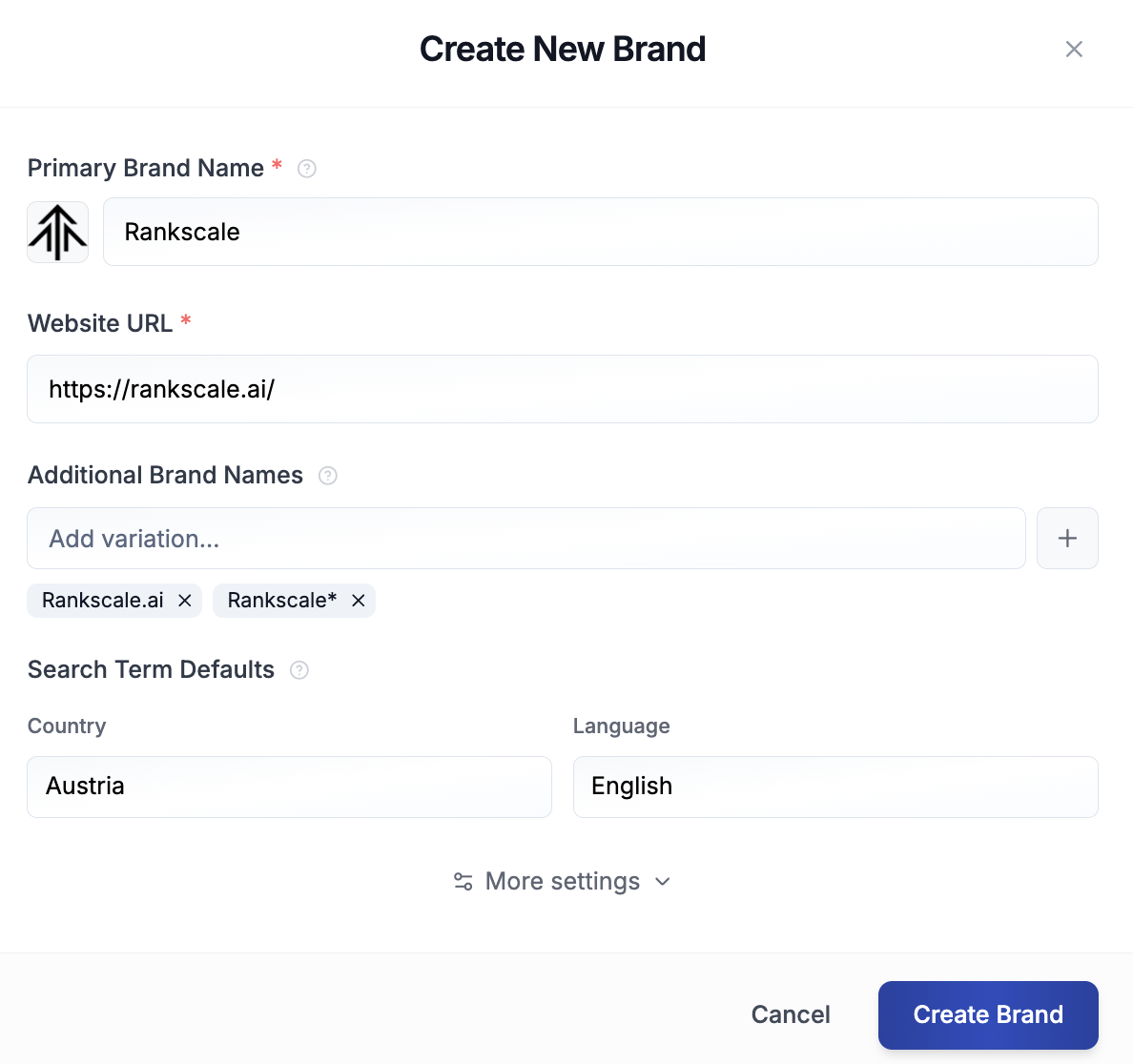
Enter your brand's name in the Primary Brand Name field. Rankscale uses this name to detect your brand in AI answers, so use the name your customers use. You can change it later.
Optional: to show a different label in the sidebar, such as a client or campaign name, fill in Project Name above it. Rankscale still detects your brand by the Primary Brand Name.
Enter the brand's website URL in the Website URL field. Rankscale uses this domain to check if your own content is cited.
Configure any additional brand settings as needed. You can change them later under Configuration > Settings in the sidebar.
Tip: Add additional Brand Names or product names to make sure that all answers related to your brand are captured correctly. You can use a * behind your brand name to create a wildcard attribute.
Select Create Brand to save your new brand.
Verify the brand was created
After selecting Create Brand, Rankscale redirects you to the new brand's dashboard. You should see the brand name in the top navigation bar, and the brand appears in your Brands list in the sidebar. The brand status shows as "Active."