AI Assistants (MCP)
Last updated: October 29, 2026
Connect Claude, ChatGPT, Cursor, and other AI assistants to your Rankscale data and ask about your brand in plain language
Ask your AI assistant about your brand
Connect Rankscale to Claude, ChatGPT, Cursor, and other AI assistants, then ask about your brand's AI-search visibility in plain language — no dashboards, no exports. Your assistant reads your live Rankscale data and answers right in the chat.
The connection is read-only by default. When you connect, you can optionally allow your assistant to help you set things up too, such as creating and updating search terms, topics, and dashboard views, and running tracking for you. You choose exactly which permissions to grant, and you can revoke them at any time.
Write access is always opt-in. New search terms are created paused, so setting things up never costs credits. Running tracking is a separate permission, and your assistant always shows you the cost and waits for your confirmation before it spends any credits. Your assistant can't delete anything or change your brand and competitor settings.
What you can ask
A few examples once you're connected:
“How is my brand trending across AI engines this month?”
“Which competitors gained the most visibility in the last 30 days?”
“Summarise sentiment for my brand and what's driving it.”
“What are my top citation sources right now?”
“List my search terms and flag the ones that are underperforming.”
“Compare my shopping visibility this week versus last week.”
“Show me the full answer ChatGPT gave for that search term, and which brands it named.”
Tip: Answers come from the same data as your dashboard, so the numbers your assistant gives you match what you see in Rankscale.
What it can set up for you
If you grant the optional “Create and update your search terms, topics, and dashboards” permission, you can also ask your assistant to make changes — for example:
“Create search terms for these five product pages — leave them paused.”
“Rename this search term and update its tags.”
“Add a topic called ‘Enterprise’ so I can group terms under it.”
“Save a dashboard view filtered to my top competitors and make it my default.”
“Group these search terms under my ‘Enterprise’ topic.”
“Pause the search terms that haven't produced anything useful.”
If you also grant the optional “Run search terms and activate tracking” permission, your assistant can run search terms right away or start tracking them on their schedule, for example:
“Run these five terms now so I can see today's answers.”
“Start tracking these three terms weekly.”
These Two Actions Spend Credits
Running a search term now and activating a search term so it tracks on a schedule both use your credits. This permission is separate from creating and updating, starts switched off, and you can leave it off. When you grant it, your assistant shows you the cost and waits for your confirmation before anything runs.
You stay in control
New search terms are created inactive, so nothing runs or spends credits until you activate them, either in Rankscale or through your assistant with the run permission. Leave both write permissions unchecked when you connect to keep the connection fully read-only.
Claude asks you to confirm every change it makes through Rankscale, such as creating a search term, a topic or a saved dashboard view. Nothing changes until you approve it.
For the full list of tools and the permission each one needs, see the Rankscale MCP docs.
Before you connect
A Rankscale plan that includes it: the integration is available on selected plans. See rankscale.ai/pricing for details.
Your Rankscale login — you sign in with your normal account. There is no API key to copy, paste, or manage.
An assistant that supports connectors — Claude (desktop or claude.ai), ChatGPT, Cursor, OpenAI Codex, and most MCP-compatible apps.
The connection link
Every client uses the same single URL. Paste it wherever your assistant asks for a “custom connector” or “MCP server”:
Rankscale MCP server URL
https://mcp.rankscale.ai/mcpWhen you connect, a Rankscale sign-in window opens. Log in, choose which permissions to grant, and click Allow. Reading is always included. Creating and updating, and running tracking, are separate optional toggles that start switched off.
Connect Claude
Works in both the Claude desktop app and claude.ai:
1. Open Customize in the Claude sidebar.
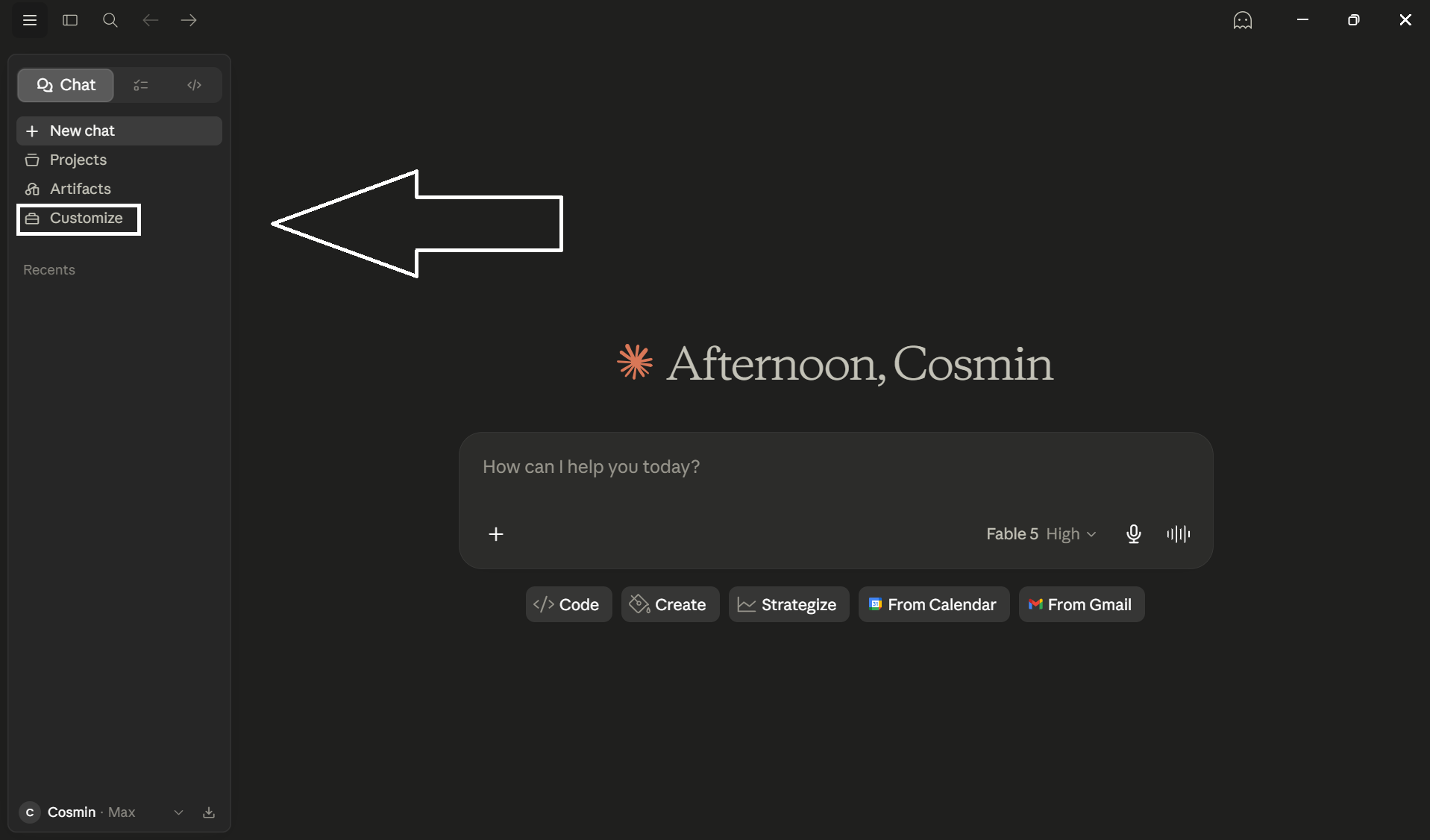
Claude sidebar → Customize
2. Open the Connectors tab.
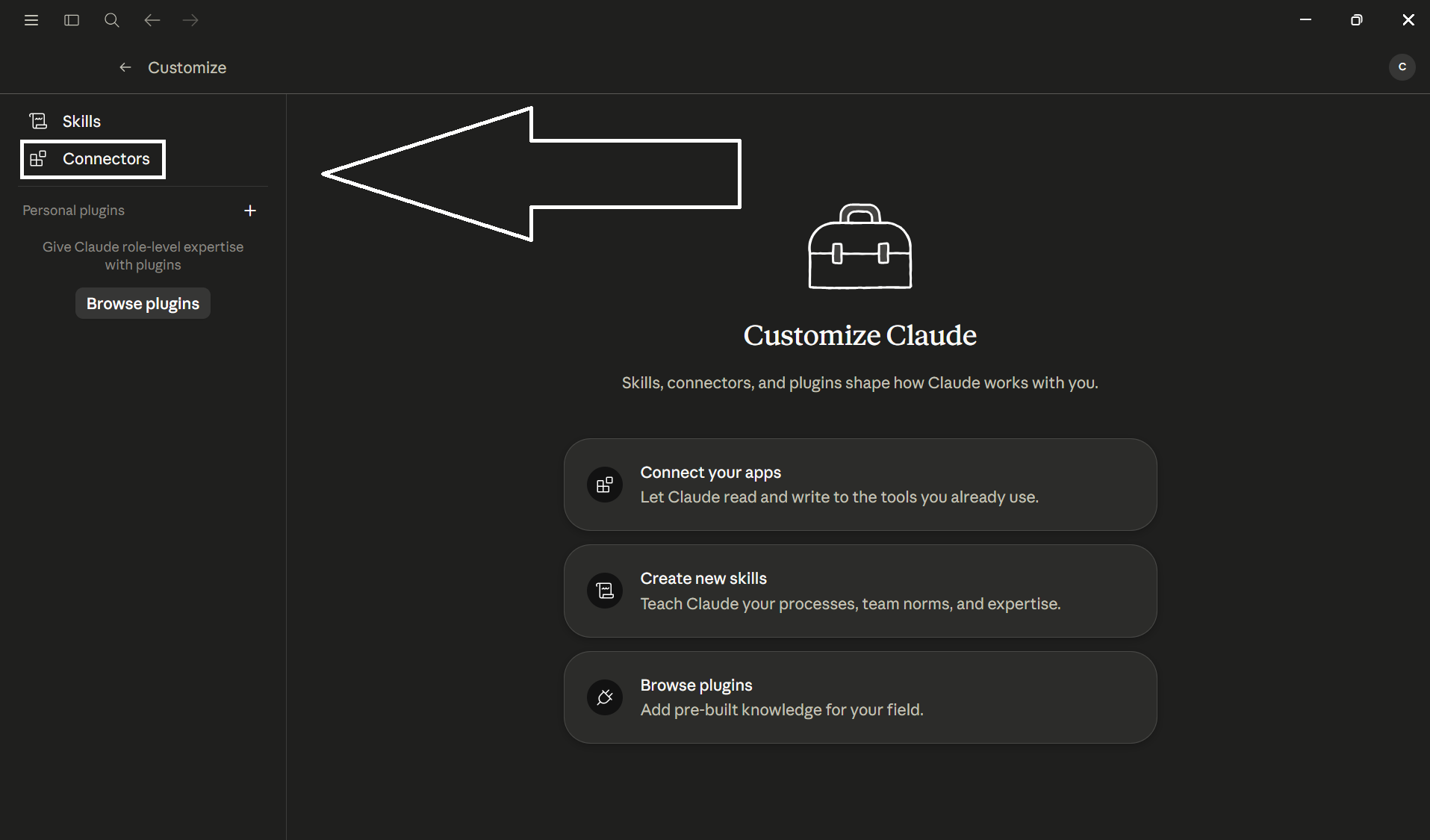
Customize → Connectors
3. Click the + Add connector button at the top of the Connectors list.
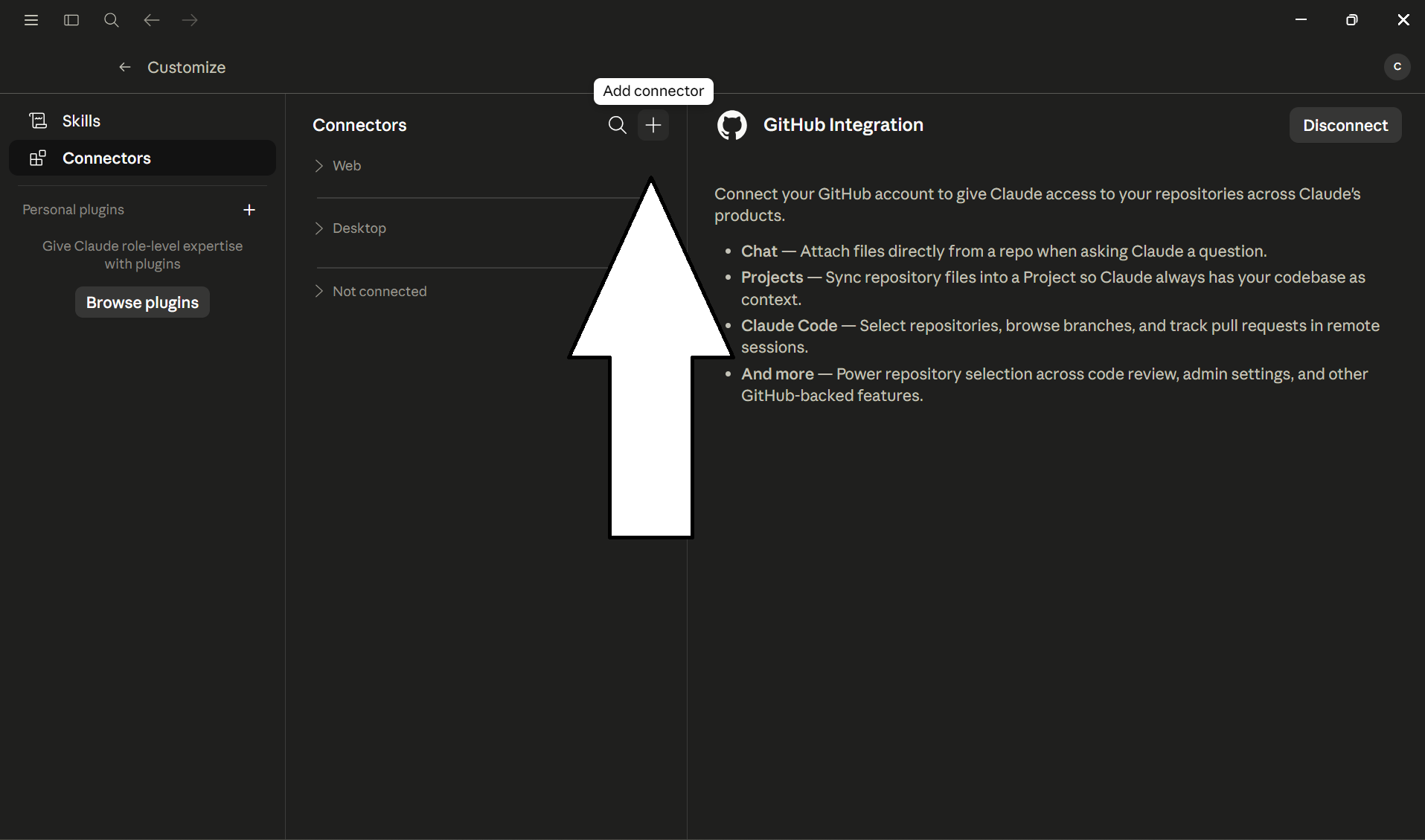
Connectors → + Add connector
4. Give it a name (e.g. Rankscale), paste the URL https://mcp.rankscale.ai/mcp, and click Add.
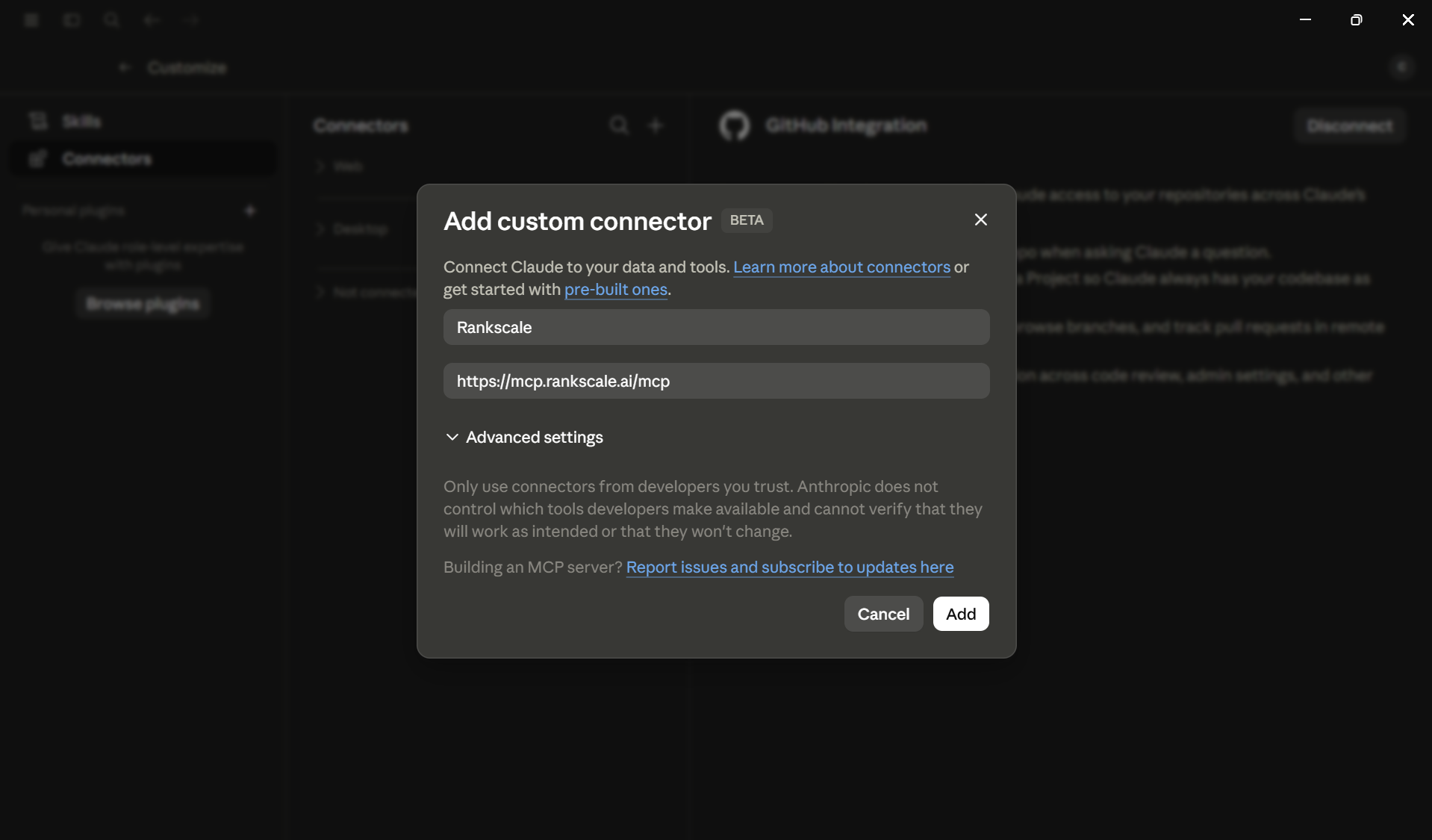
Name it, paste the URL, and click Add
5. Claude opens a Rankscale sign-in window — sign in and click Allow.
6. Start a new chat and ask about your brand — Claude uses the Rankscale tools automatically.
Connect ChatGPT
Requires a ChatGPT plan that supports connectors / developer mode:
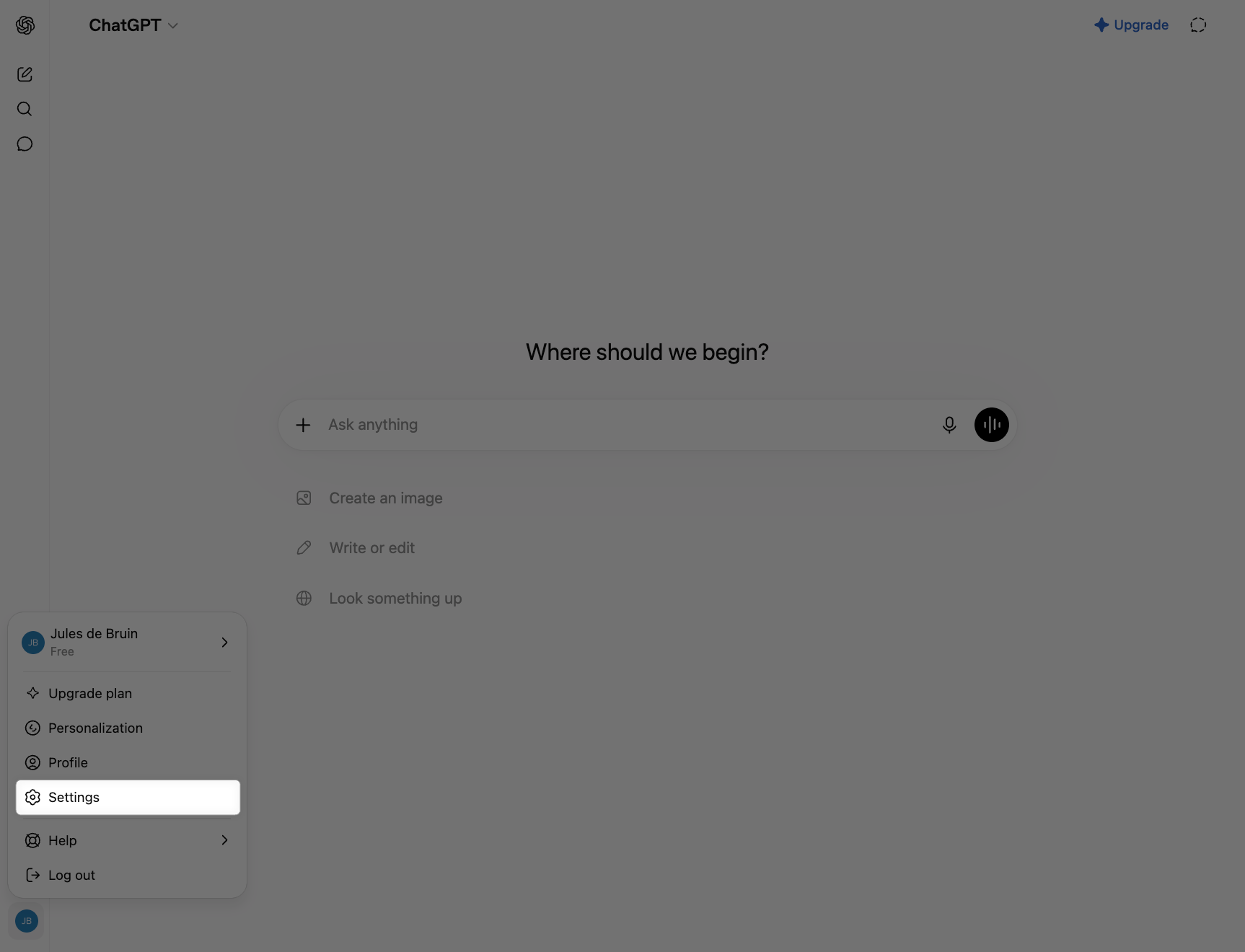
1. Open ChatGPT's Settings menu, then Settings → General.
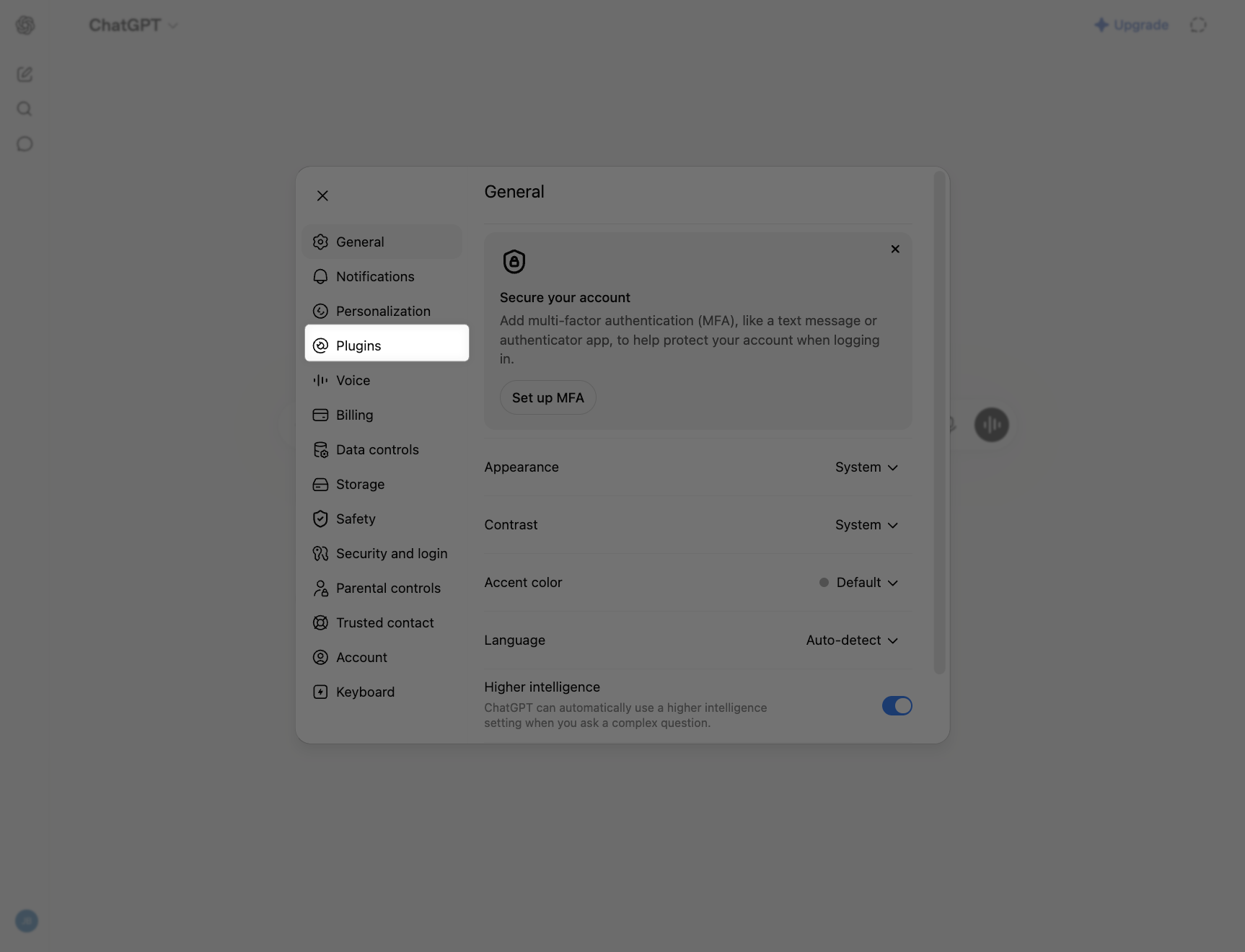
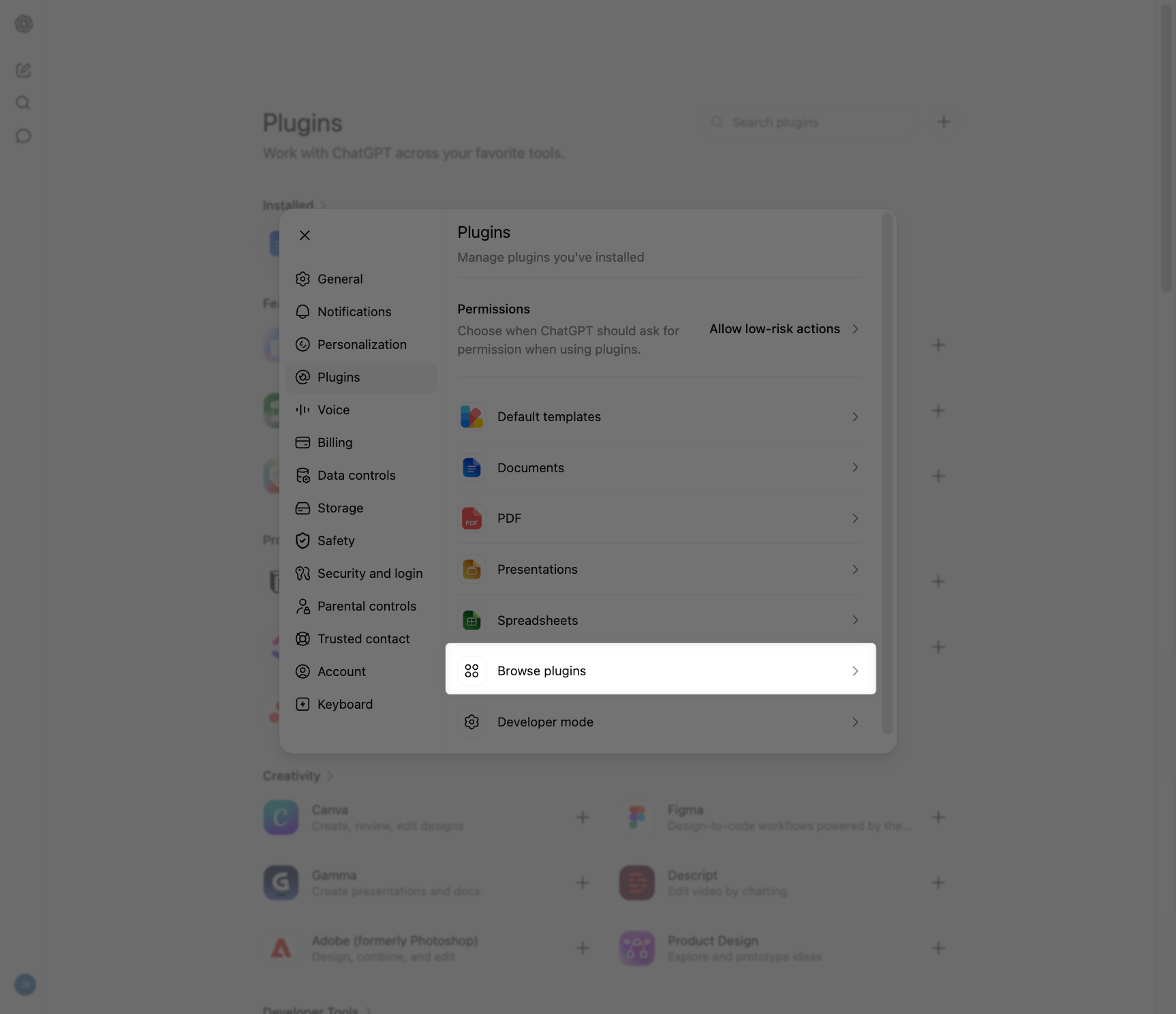
2. Go to Settings → Plugins,
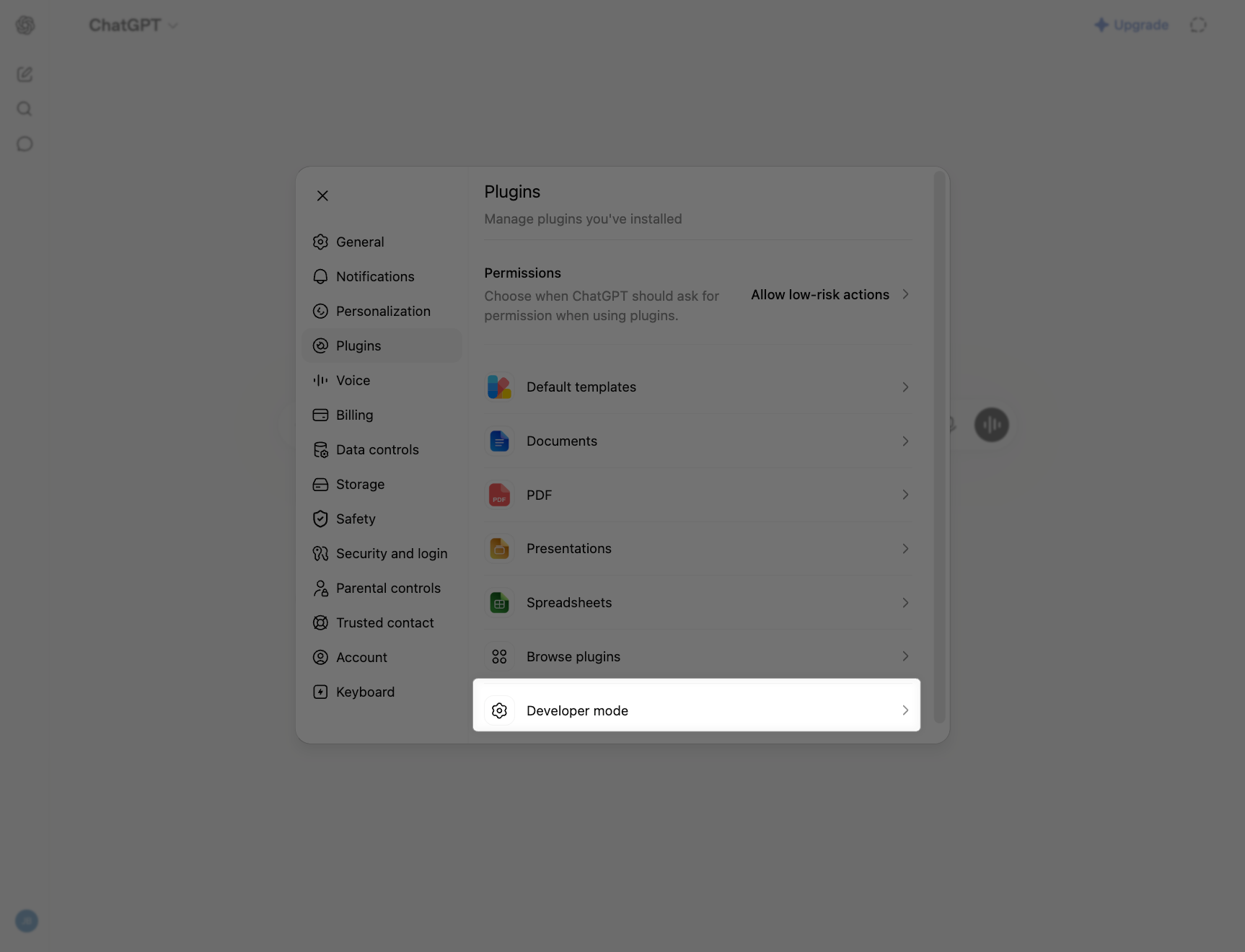
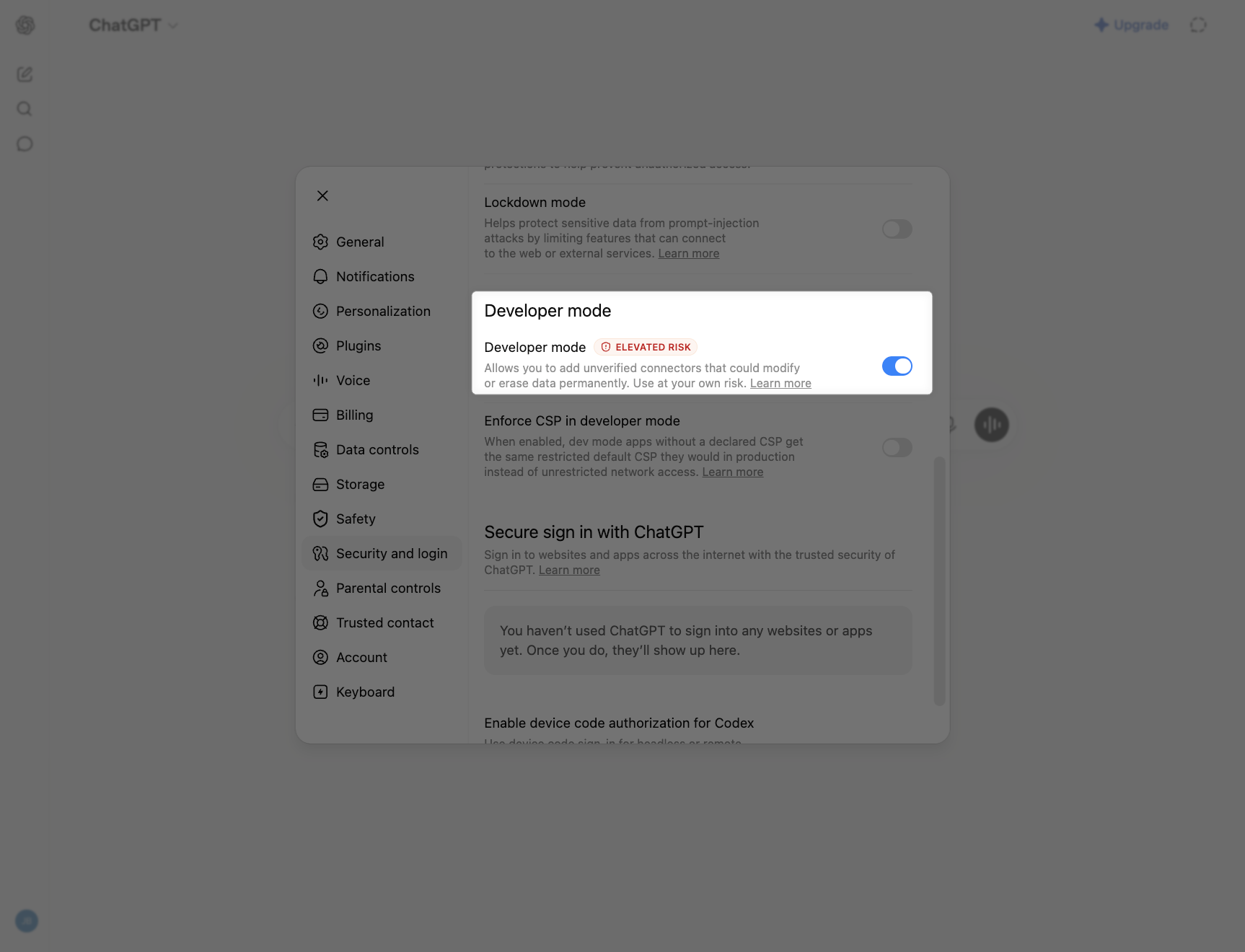
3. Then open Developer mode and enable it.
4. In the Plugins page, click Browse plugins, then + New plugin (or the + button) to add a custom MCP server.
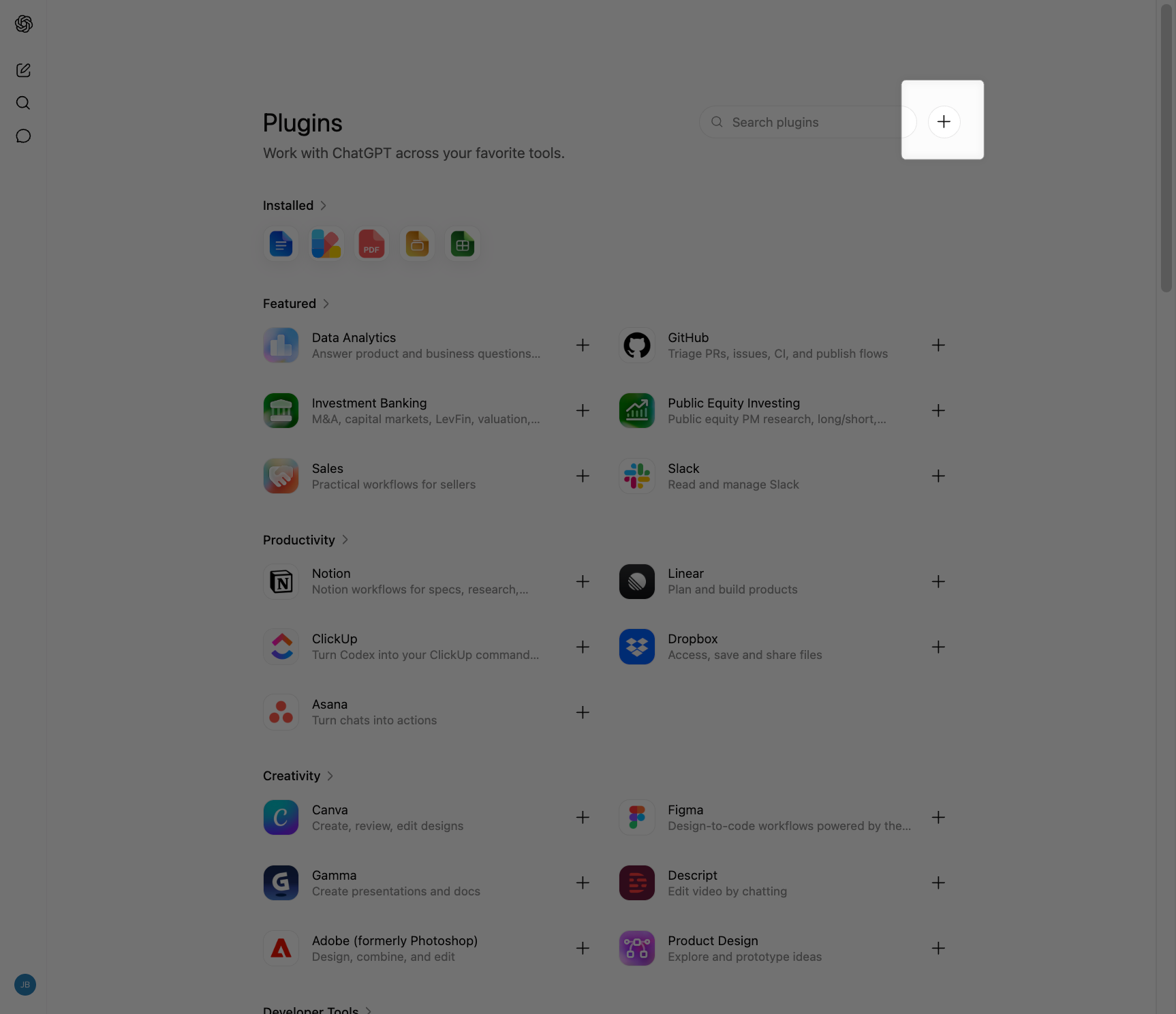
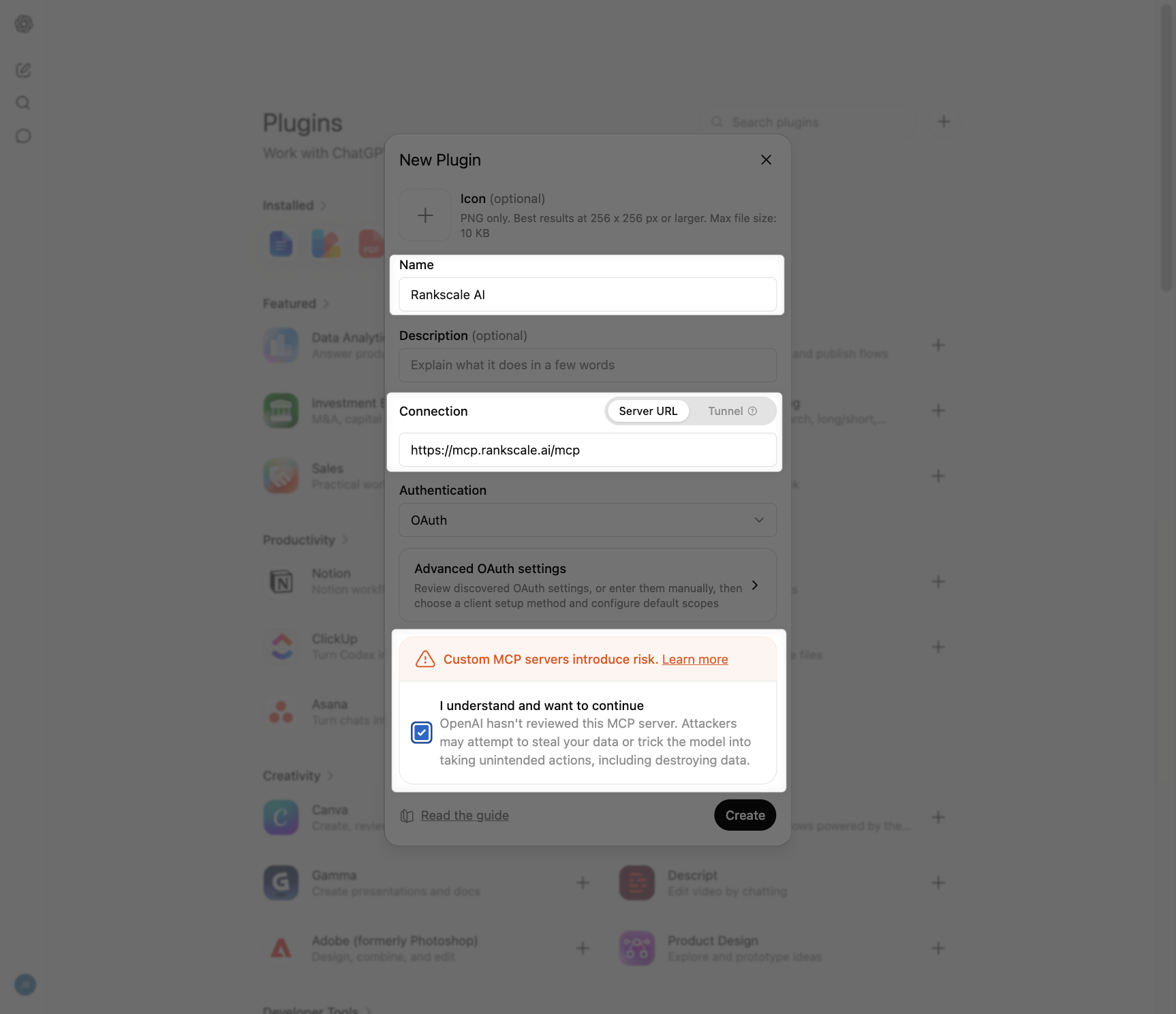
5. Give it a name (e.g. Rankscale AI), paste the URL 'https://mcp.rankscale.ai/mcp' under Connection, set Authentication to OAuth, check "I understand and want to continue," and click Create.
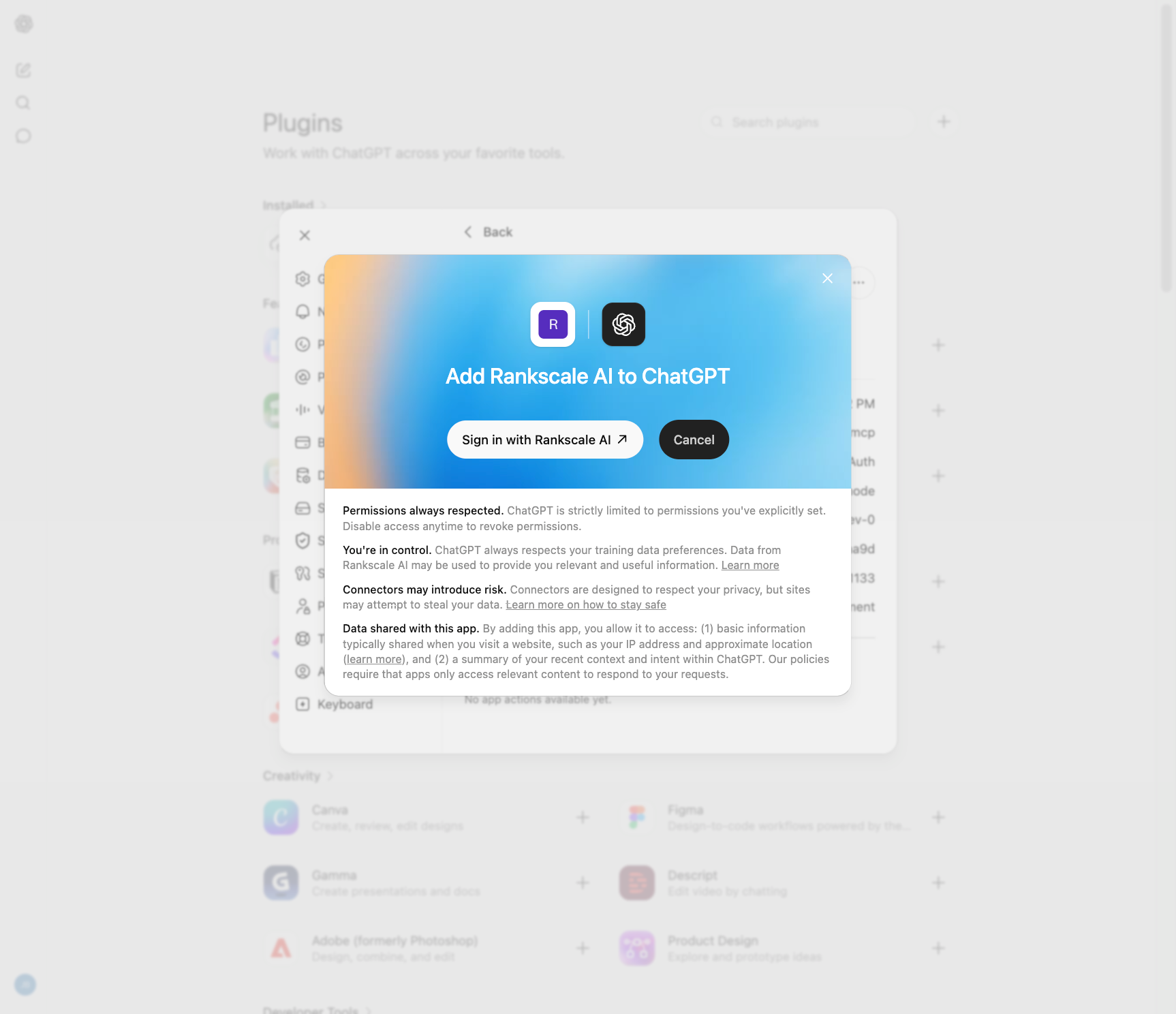
6. ChatGPT opens a Rankscale sign-in window — click Sign in with Rankscale AI, sign in, and allow access.
7. Start a new chat, type @ (or +) to attach the Rankscale AI connector, and ask your question — ChatGPT uses the Rankscale tools automatically.
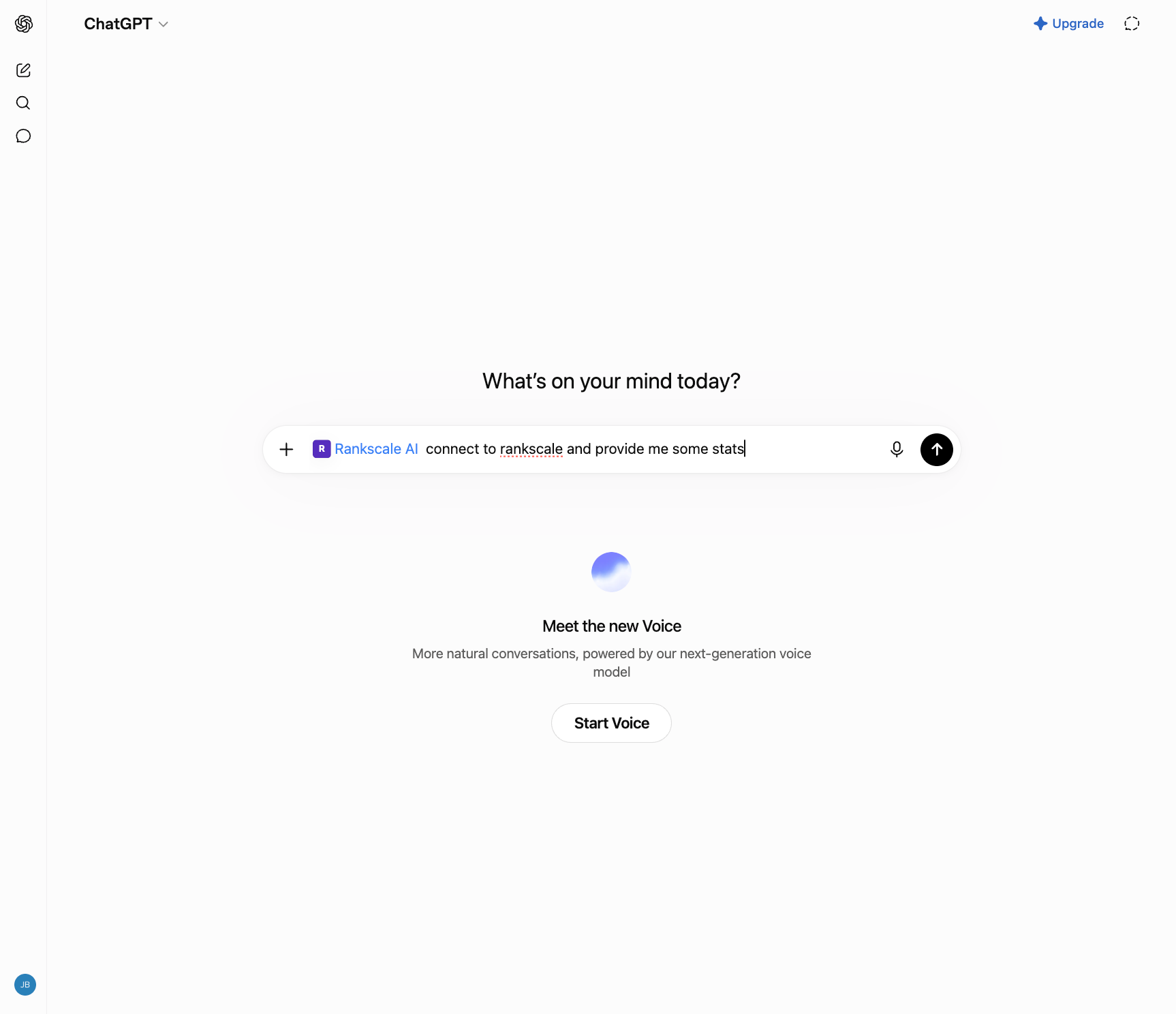
Note: ChatGPT's MCP connector only supports OAuth
Connect Cursor, Codex & other apps
Any MCP-compatible client works. Most use a small config file — add Rankscale as a remote MCP server with the same URL:
mcp.json
{
  "mcpServers": {
    "rankscale": {
      "url": "https://mcp.rankscale.ai/mcp"
    }
  }
}
The first time the client connects, it opens the same Rankscale sign-in and Allow step.
Manage your connections
You can see every connected assistant and disconnect any of them at any time on the MCP connections page. Revoking a connection immediately stops that assistant from accessing your data.
Your assistant only gets the permissions you switched on when you connected. To add one later, disconnect, connect again from your assistant, and switch on the permission you need.
Good to know: One URL works across every assistant and there's no API key to manage. Access is read-only unless you opt in to write permissions when you connect, and you can revoke any connection from the MCP connections page (linked above) whenever you like.